 Tiếng Việt
 English
 日本語
日本語Features
Here is what you will see on the driving screen, what MapCar tells you out loud, and what you can adjust in Settings.
Map data covers Vietnam only
MapCar is listed on Google Play and the App Store in every country so you can install it at home before a trip to Vietnam. Everything behind the map, however, is built for Vietnam only: the offline map, the place index, routing, the Circular 31/2019 speed table, traffic lights, road signs and the community map. Outside Vietnam the app still shows roads while you are online, but place search, navigation and speed limits have no data to work with, and the status line reads “Outside Vietnam”. Once you cross into Vietnam, everything starts working automatically.
01Driving screen
What you see while driving
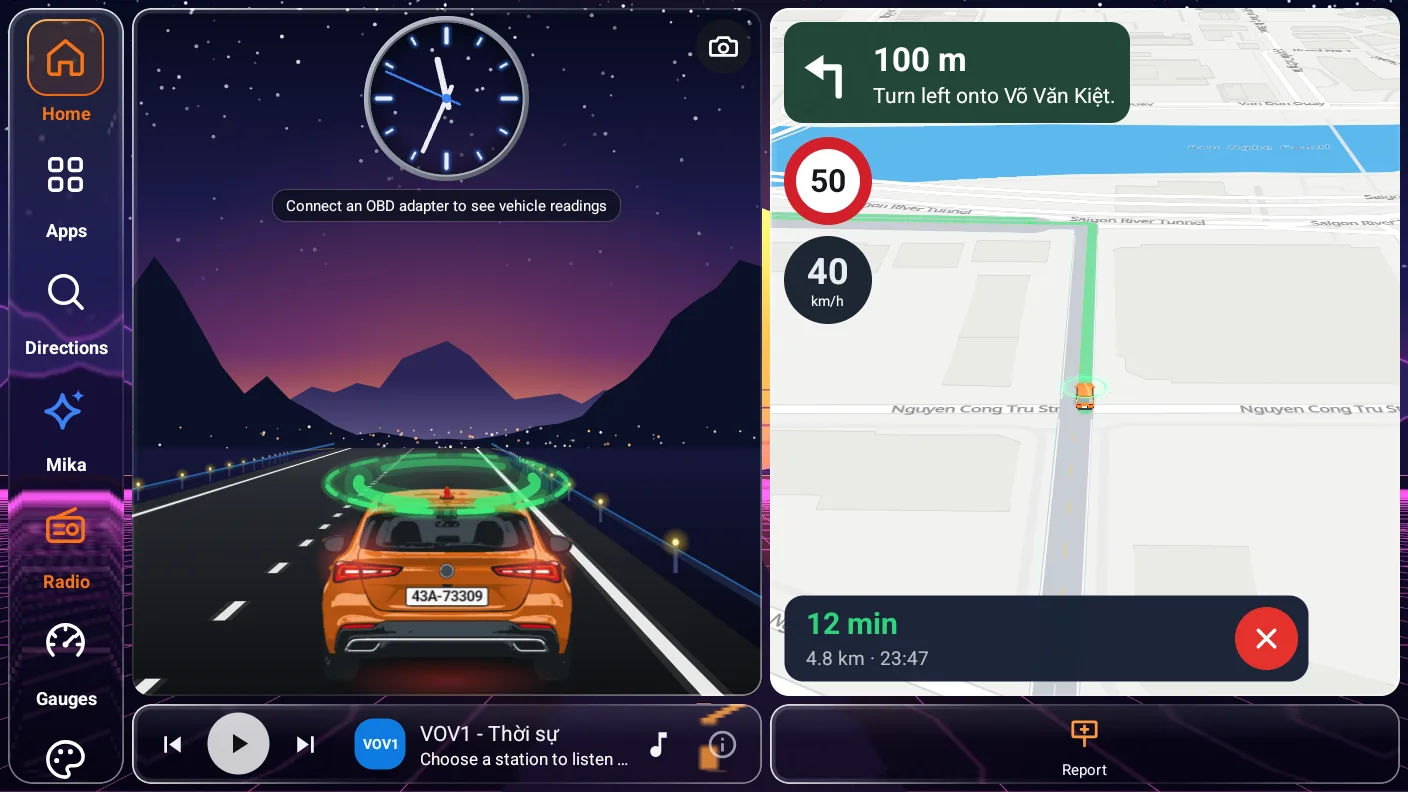
Everything that keeps your trip going runs in an Android foreground service rather than on the visible screen. On a head unit, the screen can be taken over at any moment — shifting into reverse brings up the rear camera, an incoming call brings up the phone app — and your trip and alerts carry on regardless.
1Colour-coded speed
White when you are within the limit, yellow inside the safety margin, orange when you are over, and red when you are well over. A quick glance is all it takes.
A sign that looks just like the real one
A white disc with a red ring, just like the P.127 sign by the road. When no source knows the limit for sure, the sign stays blank. If you turn on “Estimate when data is missing”, an estimated number is dimmed and marked “~ estimated” underneath.
A status line only when you need to act
GPS is handled quietly, just like Google Maps — no signal dot and no spoken GPS hints. A short status line appears only when there is something to do or know: location turned off, location permission missing, only approximate location, demo or tour mode, or “Outside Vietnam”.
3Knows which road you are on
RoadMatcher reads the roads drawn on the map to work out which stretch you are on, along with its name and class. Its thresholds are set in metres and widen automatically as GPS accuracy drops.
Signs ahead
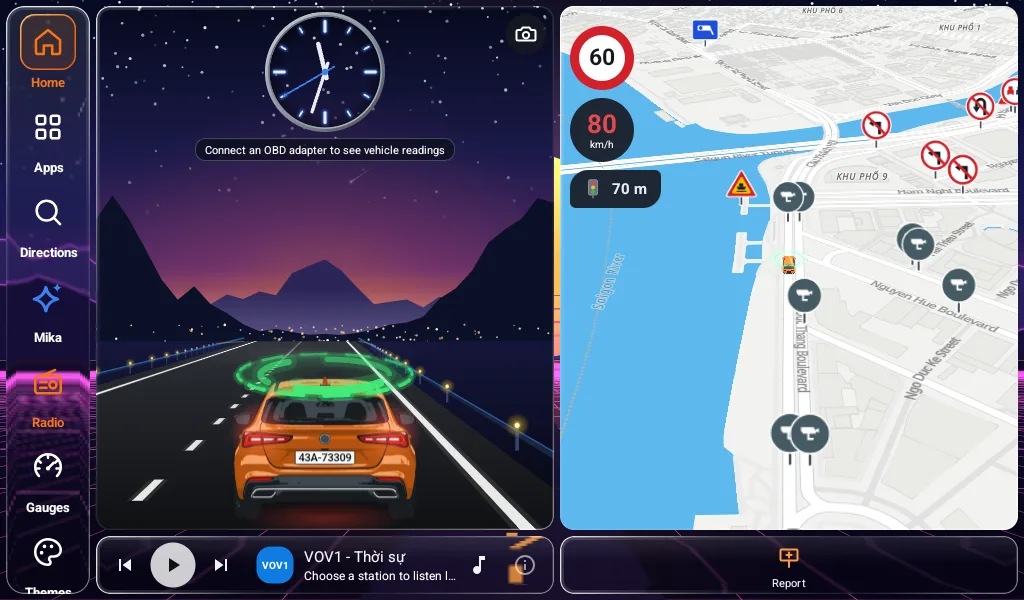
The app comes with a built-in table of signs: speed, no turn, no overtaking, tunnel, low bridge, camera. The next sign appears large in a corner along with its distance, and signs reported by the community are shown on top.
Fuel and charging ahead
Read directly from the map tiles already loaded, so no internet connection is needed. Only places ahead of the car are shown — knowing there is a station in 2 km gives you time to move into the right lane.
Fix a limit on the spot
Tap the sign to open a 30–120 km/h grid, choose the correct number, and the app will remember it for that area. To undo, tap ‘use default’.
Trips tracked and saved
Distance, driving time, average / top speed and the number of times you went over the limit are tallied during the journey and saved to your history when it ends. Trips under 300 m are not recorded.
2Music controls in MapCar Launcher
The music tile on the launcher's home screen shows what your music app is playing, with play/pause and skip. The launcher does not play the music itself — it simply relays the controls, so you can change tracks without ever leaving the map.
02Navigation
Search, tap, go — with or without signal
Tapping a search result starts navigation straight away, with no extra confirmation — tapping a place already tells us where you want to go, and every extra step is one more glance away from the road.
1Search as you type
Results update as you type (after a 400 ms pause), with or without Vietnamese diacritics. Online, the search goes through our server to MapCar's own place directory and Vietnamese search providers; offline, it uses the Vietnam place index stored on your device. Places you visit often and places you have saved appear first.
2Spoken turn instructions
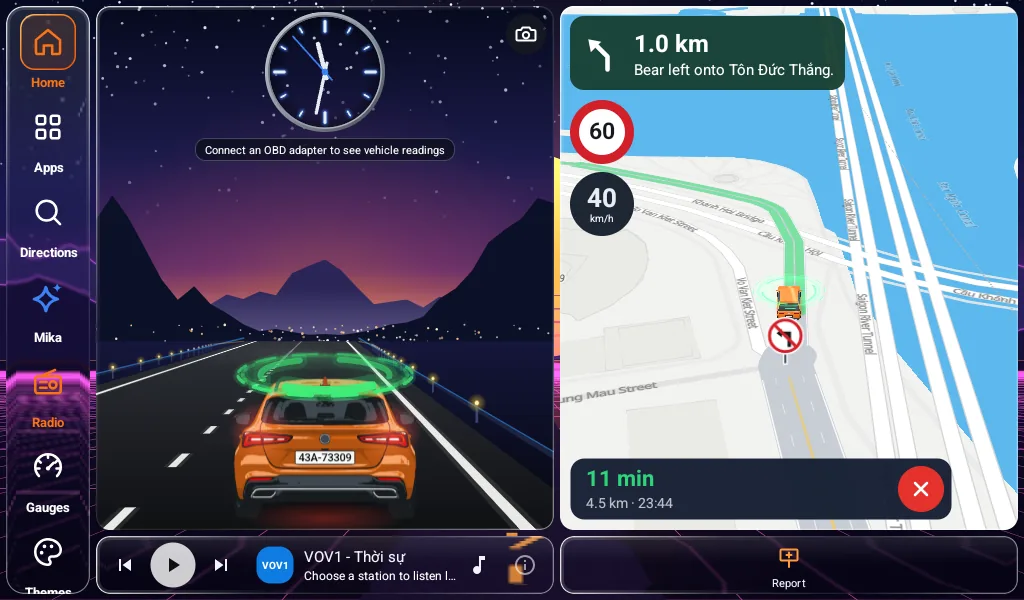
How many metres to go, which way to turn and onto which road. If you leave the route, it finds a new one for you. Online routing uses Valhalla; offline, BRouter calculates the route on your device from downloaded data — in that case the instructions do not include street names.
Remembers the way you go
When you leave the suggested route and still arrive, the app remembers the way you drove. The next time you travel that stretch, the route follows your preferred way. This is stored only on your device.
3Voice commands
Tap the mic and say where you would like to go. Online, it uses your device's speech recogniser; offline, it uses a built-in Vietnamese Vosk model (32 MB) that runs entirely on your device.
A motorbike profile
Choose motorbike in My Vehicle and routing switches to a dedicated profile, with the speed-limit table updated to match — BRouter's standard two-wheeler profile is marked as not suitable for real navigation, so it is not used.
Offline map of all Vietnam
A single 145 MB PMTiles pack, a 43 MB place index and BRouter data by region, all available under Settings → Offline data. When a new version is ready, the app lets you know — no need to reinstall.
03Alerts
Speaks up only when it matters
An app that talks too much tends to be uninstalled within ten minutes. Every announcement goes through a single queue and plays one at a time; announcements that are no longer timely are skipped rather than played late, because “turn right in 300 m” four seconds late is already wrong.
2Overspeed
A 3 km/h buffer keeps alerts from flickering on and off, repeats are spaced 30/20/12 s apart depending on severity, and the default margin is +5 km/h — but if you move up to a more serious level, you are told straight away. The Vietnamese voice is pre-recorded MP3, so it plays on every head unit.
1Following distance
The camera measures the gap to the car ahead and warns you when you are closer than Article 11 of Circular 31/2019 (35 m at 60 km/h, 55 at 80, 70 at 100, 100 at 120). Below 60 km/h the 2-second rule applies; below 20 km/h it stays quiet. This alert takes priority over everything else.
3Traffic lights
Traffic light locations come from OpenStreetMap and are built into the app. It says “traffic light in 200 m” if you approach without easing off the accelerator — at most once per light, and never below 25 km/h. The app cannot see whether the light is red or green; it is simply a reminder to check.
Rest reminder after 4 hours
The law limits continuous driving to 4 hours. The app counts only the time the car is actually moving; a break of 15 minutes or more resets the timer, while a two-minute fuel stop does not.
Quiet by design
The trip greeting is spoken just once. Folk sayings on empty roads (off by default) play only after 12 minutes without any alert — in town you will hardly ever hear them, and any real alert takes over immediately.
Three languages
Tiếng Việt, English, 日本語 — both the screen text and the voice. Vietnamese alerts are pre-recorded; English and Japanese use the device voice, and fall back to a short beep if no voice is installed.
04Community map
Drivers ahead tell drivers behind
On by default, and you can turn it off in Settings. Only the report type, the spot you tapped, your heading and a random device id are sent to the server — never your travel history, and nothing that identifies you.
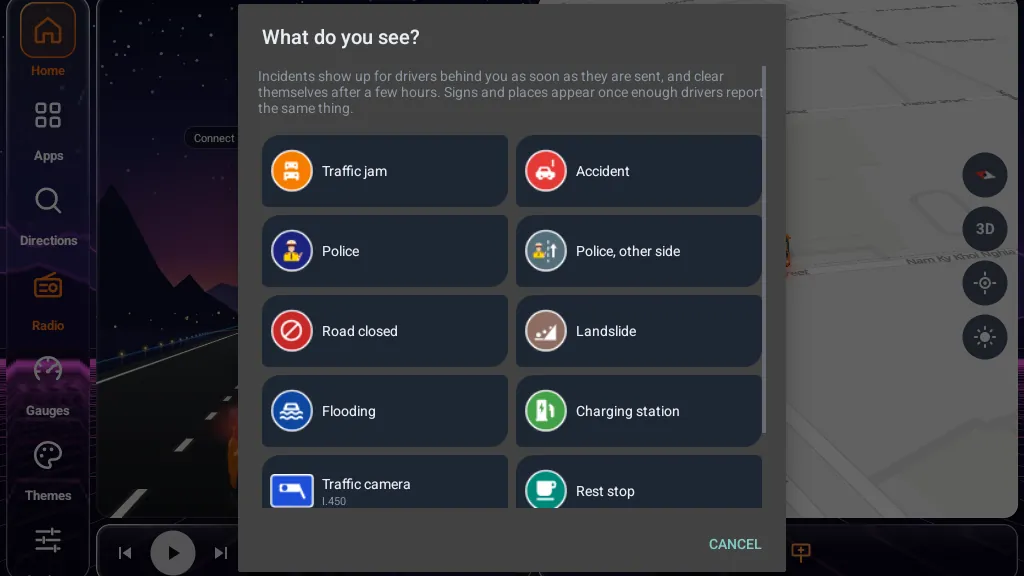
121 report types
Speed signs, no-turn, no-overtaking, no-entry, height / weight limits, built-up area start and end, speed cameras, tunnels, ferries — and incidents: jams, accidents, closures, landslides — plus fuel, charging and rest stops.
Signs appear only when confirmed
A speed sign is published only when three different devices report it within 25 m. Temporary incidents appear immediately and expire after 30–60 minutes. A report is hidden once three ‘gone’ votes outnumber the ‘still there’ votes.
Live as it happens
While you drive, the app stays connected in real time to your 5 km grid cell — if someone reports a jam ahead, you see it within seconds rather than at the next refresh.
05Your vehicle
Real readings from your car, plus a vehicle type that sets the speed-limit table
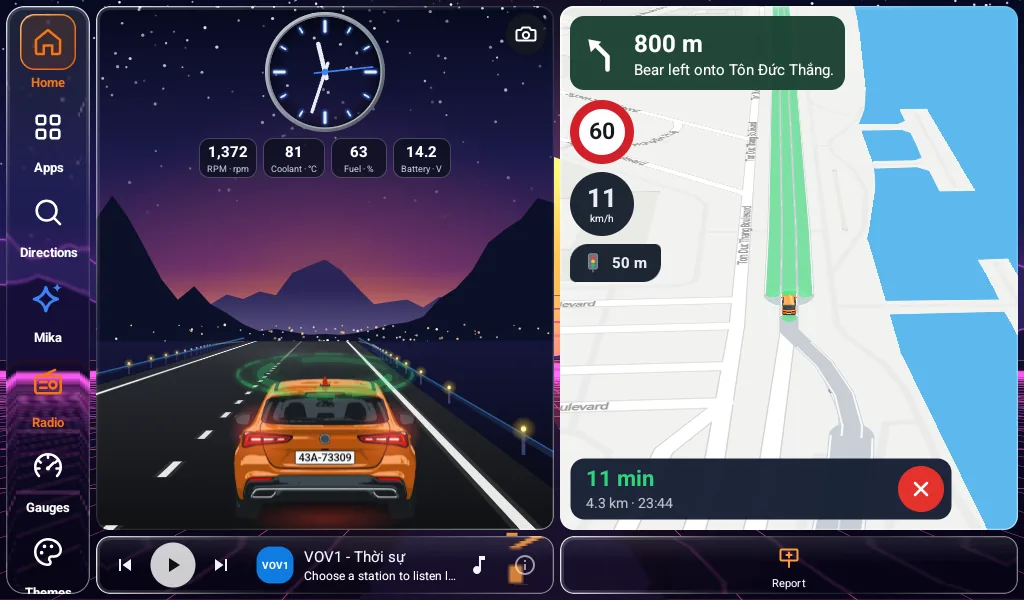
My Vehicle
Car, heavy truck or motorbike — the type changes the whole speed-limit table under Article 7 of Circular 31/2019: a heavy truck outside built-up areas is limited to 80/70, not 90/80. If everyone were treated as a ‘car’, truck drivers would be warned 10 km/h too late.
1OBD-II dongle — Pro
Plug an ELM327 into the port under the steering wheel and pair it over Bluetooth (or connect to the dongle's WiFi). Speed then comes straight from the car instead of GPS, the rev counter shows a real value, and you can check coolant, oil, voltage and fault codes. Overheating or a Check Engine warning is announced once for each level.
Tyre pressure sensors
Works with aftermarket Bluetooth TPMS valve caps. Shows kPa / bar / psi, whichever you prefer, and speaks up only when a tyre is out of range. It cannot read the car's factory sensors, as tyre pressure is not part of standard OBD-II.
2Custom brand logo — Pro
Place your own image between the two gauges. It comes in the same pack as OBD-II; every safety feature — speed alerts, rest, distance, navigation, lights — stays outside the pack and is free forever.
Android Auto app for phones
A second app, vn.com.zsoft.mapcar.phone, projects the map onto the car's built-in screen through Android Auto, with following-distance warnings from the phone camera. It shares the same core, with an interface of its own.
iPhone build
Rewritten in Swift with the same alert rules and the same servers: limit sign, navigation with street names even offline, rest reminder, camera following distance on Core ML, OBD-II over Bluetooth LE or WiFi, MapCar Pro through the App Store. On the App Store for iOS 16 or later, and on CarPlay too: map screen, Dashboard and instrument cluster.
Island sovereignty
Public map tiles label the Paracels with foreign administrative names. The app hides those labels and shows the Vietnamese island names from data built into the APK. This is a requirement of the Law on Surveying and Mapping, not a design choice.
06Settings
Tune it to your car and your driving
Every row is at least 64 dp tall with 16 sp text, because head-unit touchscreens are much less precise than phones. Changes are saved as soon as you tap — there is no Save button.
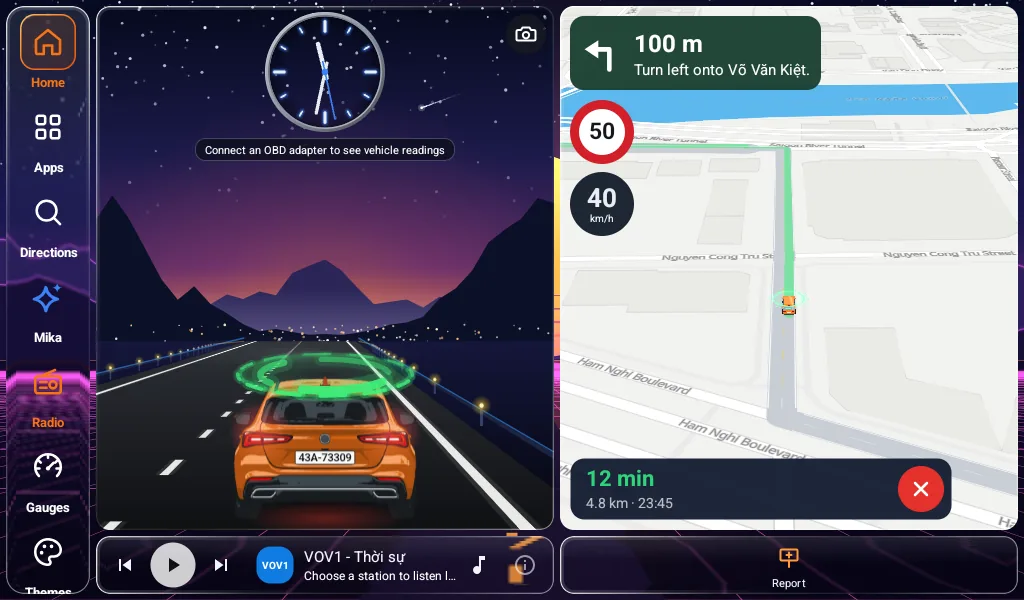
Safety margin
You are alerted only when you go over the limit plus this margin. The default is +5 km/h because GPS can be off by a few km/h; at 0 you would get false alarms.
Estimate limits on / off
Off by default: stretches with no limit data show no sign and get no alert at all, rather than an alert based on an estimated number. Turn it on and estimated limits are marked ~ estimated.
Map style
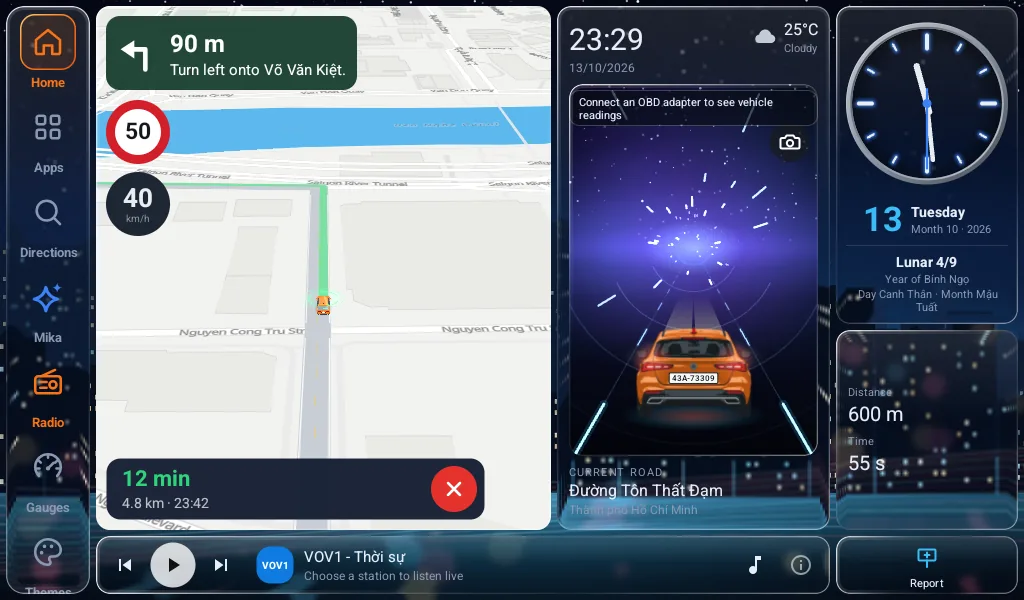
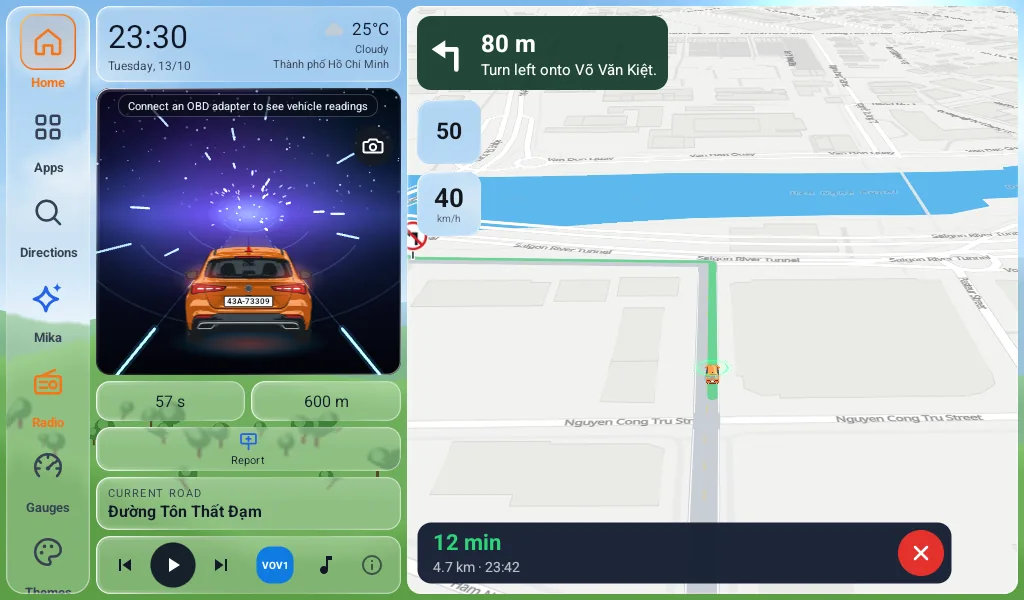
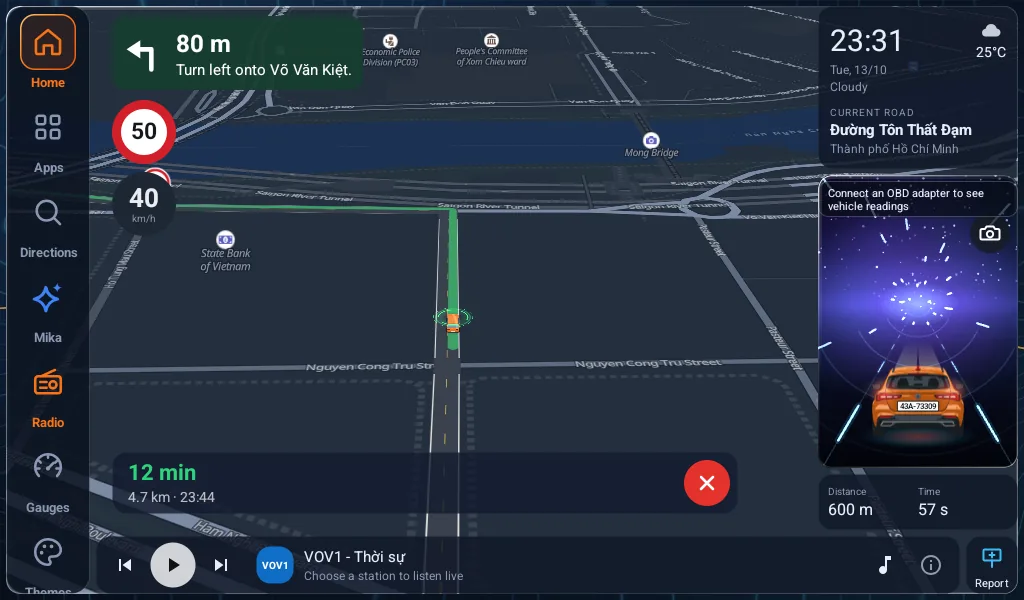
Auto (follows light/dark), Liberty with full detail, Dark for night, Positron in soft, pale tones, and Night 3D tilted 60° with 3D buildings. Head units on Android 9 and older have no system dark mode, so the app switches to dark from 18:00 to 06:00.
Main-screen layout
Three columns: gauges, camera and map. Turn one off and the others expand to fill its space. You can also keep the screen on and start the app with the car.
Reverse camera
Most head units switch to the rear camera on their own, so there is nothing to set up. This option is only for units that pass the reverse signal to apps — enter the manufacturer's signal name and the app will step aside when you shift into reverse.
Self-update
The APK version has no Play Store to announce updates, so the app checks with our server once a day, only while the car is stopped. In line with Google policy, this is turned off entirely in the Google Play version.
Try it in your car
Install the APK and drive — every safety feature is free
APKs are offered per chip type, from about 95 MB. Pro only unlocks OBD-II and the brand logo, and comes with a 30-day trial that does not require Google Play.