MapCar

User guide

Six simple steps to take right after installing — pick your vehicle, allow location and microphone access, download offline data, and enjoy 30 days with everything unlocked — followed by navigation, saving Home and Work, talking to Mika, the windshield HUD, and what each tab in Settings does.

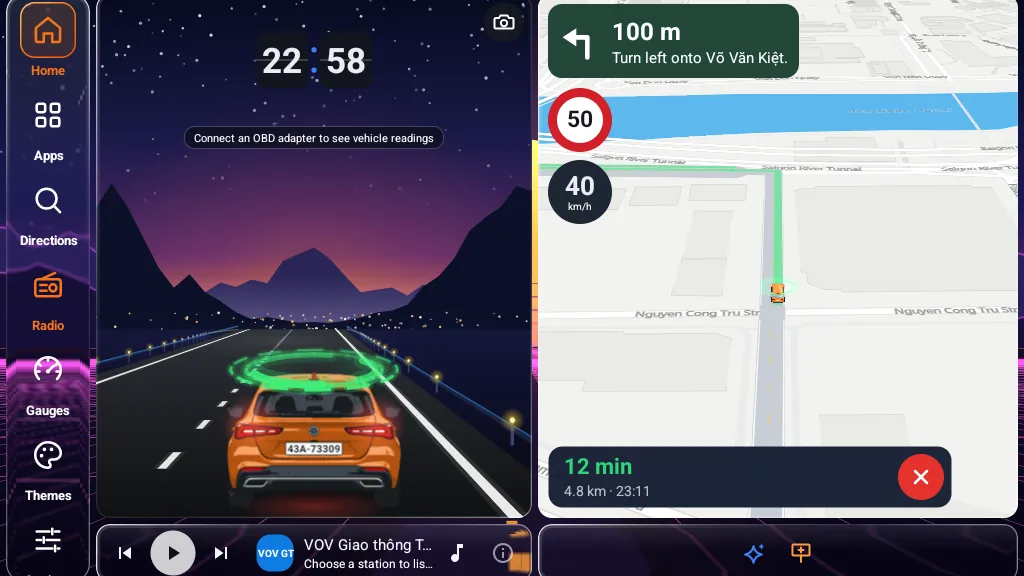
The 50 : 50 screen while driving: the virtual road with the car and clock on the left, the map navigating with a 50 limit sign and 40 km/h on the right

Right after installing

Six steps to get ready for your very first drive

  1. 01Pick your vehicle
  2. 02Allow location access so the map can work
  3. 03Allow the microphone to talk to Mika AI
  4. 04Download offline data while still on Wi-Fi
  5. 05Park outdoors for your first GPS fix
  6. 06Your first 30 days: all of Pro, no setup needed
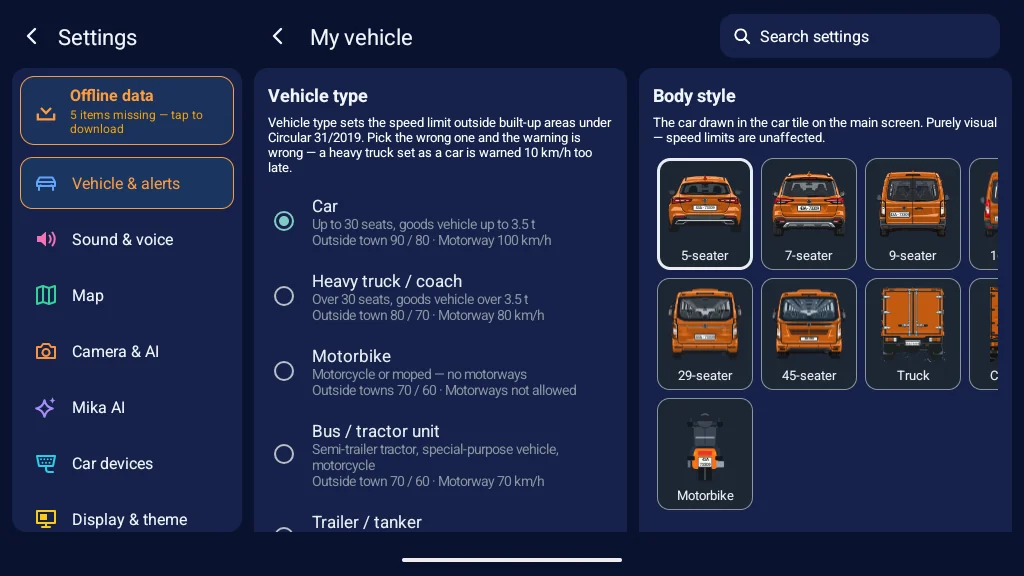
Settings → My vehicle: pick the vehicle type (car, heavy truck, motorbike…) and body style
01

Pick your vehicle

When you first open the app, you are asked to choose: car, heavy truck or motorbike. You can skip this — the map and alerts will still work — but the vehicle type sets the speed-limit table under Article 7 of Circular 31/2019, so choosing the right one helps you avoid late warnings. You can change it any time in Settings → Vehicle & alerts.

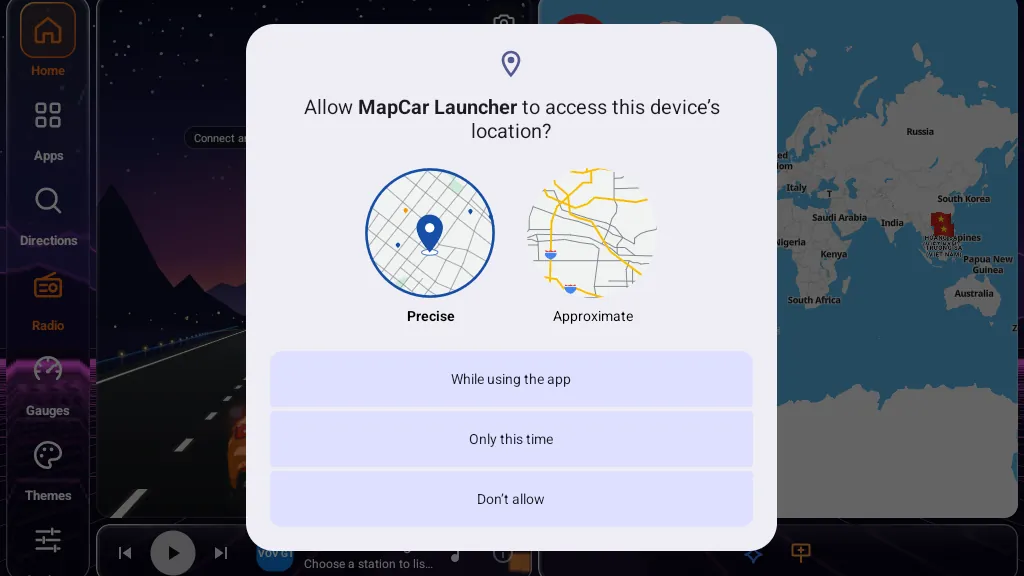
Android location permission dialog for MapCar Launcher: Precise, While using the app
02

Allow location access so the map can work

Right after you choose your vehicle, Android asks for access to your location. Please choose Precise and While using the app. Without it the app cannot tell where your car is, so there is no speed, no limit sign and no navigation. If you declined by mistake, the drive screen shows ‘Location permission missing — tap to grant’ in the top-left corner; just tap it, or go to Android Settings → Apps → MapCar → Permissions. If your device also asks about notifications, please allow them — this is the ‘MapCar is running’ notification that keeps alerts working while another app is on screen.

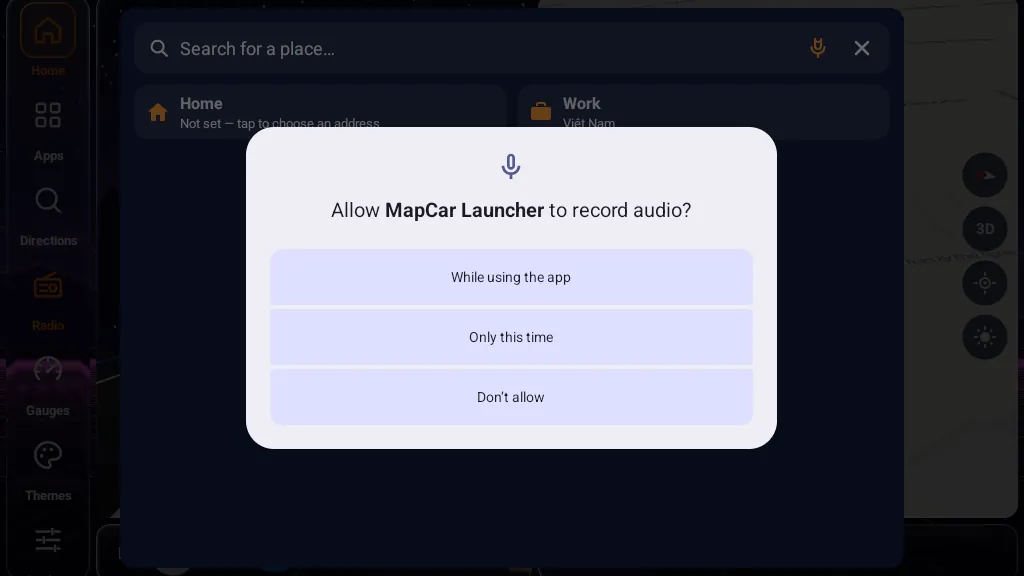
Android microphone permission dialog for MapCar Launcher — needed for the Mika assistant
03

Allow the microphone to talk to Mika AI

The first time you tap the microphone button on the drive screen (or as soon as the app asks), Android asks for permission to record audio. Choose While using the app. The microphone is used for the Mika voice assistant: it turns on only when you tap the button, listens to your command and then turns off — the app never records your trip. On units with Google's recognizer, or with Offline speech recognition downloaded, your words are turned into text on the device and only that text is sent to the server to be understood; on units with neither, the short audio clip of your command is sent to the server to be transcribed. If you decline, the button cannot hear you; you can turn it back on under Android Settings → Apps → MapCar → Permissions.

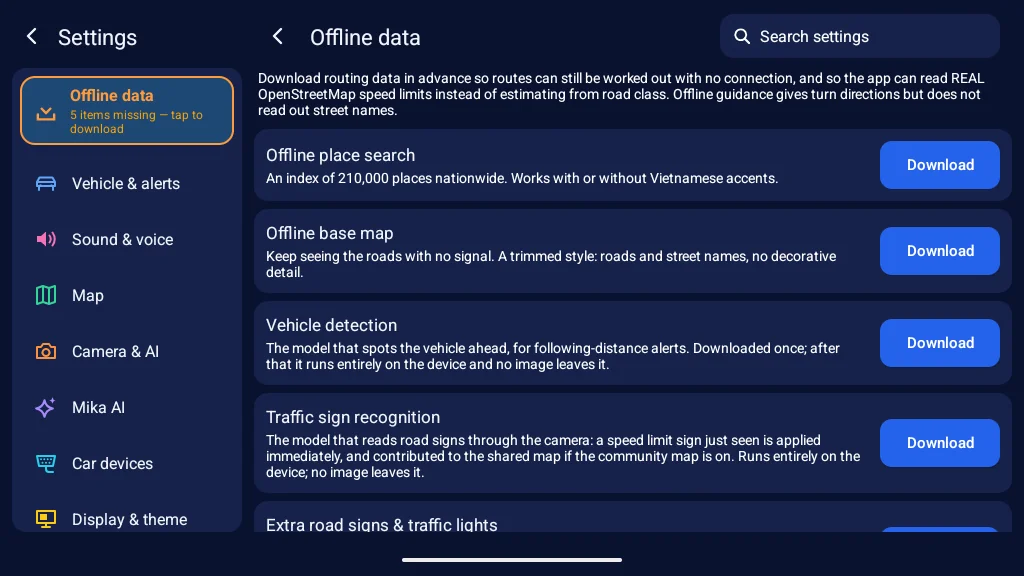
Settings → Offline data: place search, base map, vehicle and sign recognition, each with a Download button
04

Download offline data while still on Wi-Fi

It is best to do this before your first drive, while the unit is still connected to home or garage Wi-Fi: tap the gear icon on the drive screen, then the Offline data button in the top-right corner of Settings. You only need to download these once: Offline place search (an index of 210 000 places nationwide), the offline base map, and the routing regions you drive — South, Central, North. We also recommend Offline speech recognition so Mika can understand you without signal, and Vehicle detection and Sign recognition if you use the camera. After that you can search and navigate without signal, and many more roads show their real OpenStreetMap speed limits. New versions are announced on this screen — we suggest downloading them over Wi-Fi.

The 50 : 50 screen while driving: the virtual road with the car and clock on the left, the map navigating with a 50 limit sign and 40 km/h on the right
05

Park outdoors for your first GPS fix

Before your first drive, park somewhere under open sky. The first satellite fix can take a minute or two, especially right after the unit powers on; once the car arrow sits in the right place on the map, you are ready to go. GPS is handled quietly, just like Google Maps, with no signal dot and no spoken GPS hints. A status line appears in the top-left corner only when you need to act (location turned off, permission missing, only approximate location) or in demo or tour mode, and tapping it takes you straight to the right place. The map in the picture is the 3D map (stylised houses, trees and street lamps), which is on by default on a new install — on a less powerful unit, you can turn it off in Settings → Map.
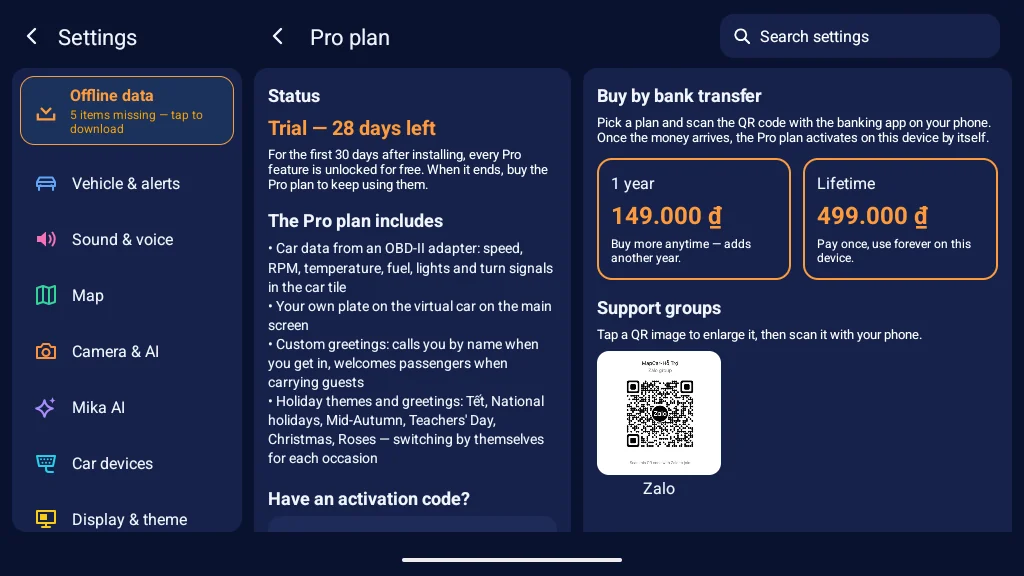
Settings → Pro plan showing Trial — 28 days left, with the activation-code box and bank-transfer prices
06

Your first 30 days: all of Pro, no setup needed

As soon as you install it, the app unlocks everything in the Pro plan for 30 days — speed and RPM from the OBD-II adapter, your own car badge and plate, the drive looks — plus 30 days of the Mika AI voice assistant. No card, no Google Play and no automatic charges. You can see how many days are left under Settings → Pro. When the 30 days are up, these extras are locked again, while every safety alert and navigation remain free as always; to keep them, simply buy the yearly or Lifetime plan on your phone and enter the code in ‘Activate with a code’ just below.

01

Navigation

Tap the search box and type your destination — diacritics are optional, and results update as you type. Below the box you will find ready-made chips — Coffee, Restaurants, Hotels, Shopping, Hospitals — for searching around you without typing. Tapping a result shows the route right away: the app offers up to three alternatives; tap a route or its card to choose it, then tap Start. Prefer to speak? Tap the microphone or ask Mika — see below.

The app says “in 400 metres, turn right onto Nguyễn Văn Linh”; if you leave the route, it calculates a new one. If you take your own way and still arrive, the route follows your way next time (you can view and delete these under Settings → Map → Your usual routes). If your destination is down a narrow alley, the app lets you know by voice before you drive the car into it.

If you lose signal along the way, guidance carries on; any new route is calculated on the device from the downloaded routing region — in that case the instructions simply say “turn right” without a street name. This is a limitation of the offline data, not a fault.

02

Saving an address as Home or Work

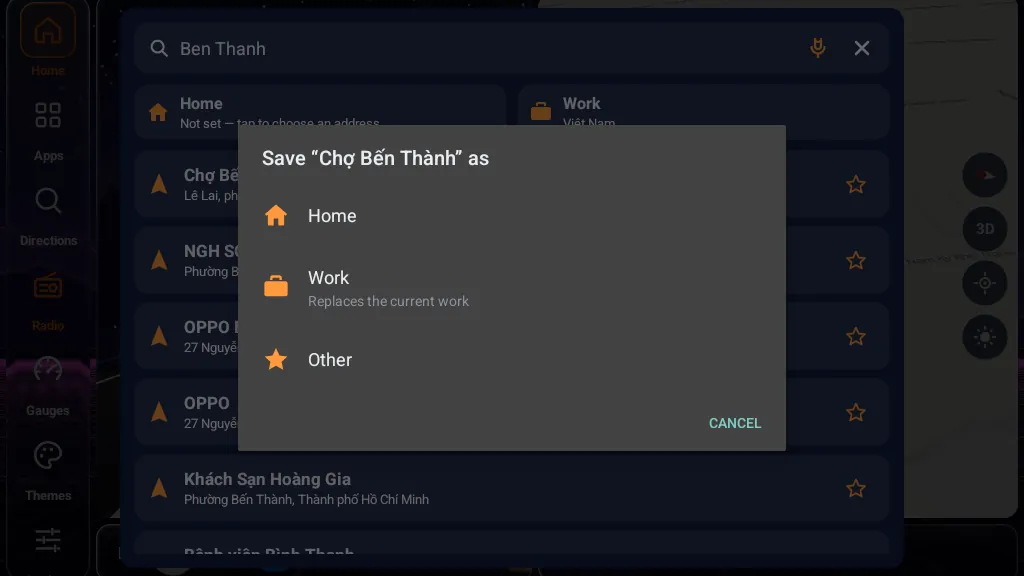
Search results for Chợ Bến Thành, a star on the right and the Save as Home / Work / Other dialog

Search for your home or office address as usual, then tap the star on the right of the result (rather than its name). The app asks whether to save it as Home, Work or Other. You can have one Home and one Work — saving a new one replaces the old one, and the app checks with you first. From then on, Home and Work chips appear right under the search box whenever you open it, so your route is just one tap away; ‘Other’ places are listed among your saved places below. Once saved, you can also simply tell Mika “take me home” or “go to work”. To remove a saved place, tap the star again. The list stays on your device; the saved names are sent along with your question only when you ask Mika, so Mika knows where “home” is.

03

Mika AI — voice commands

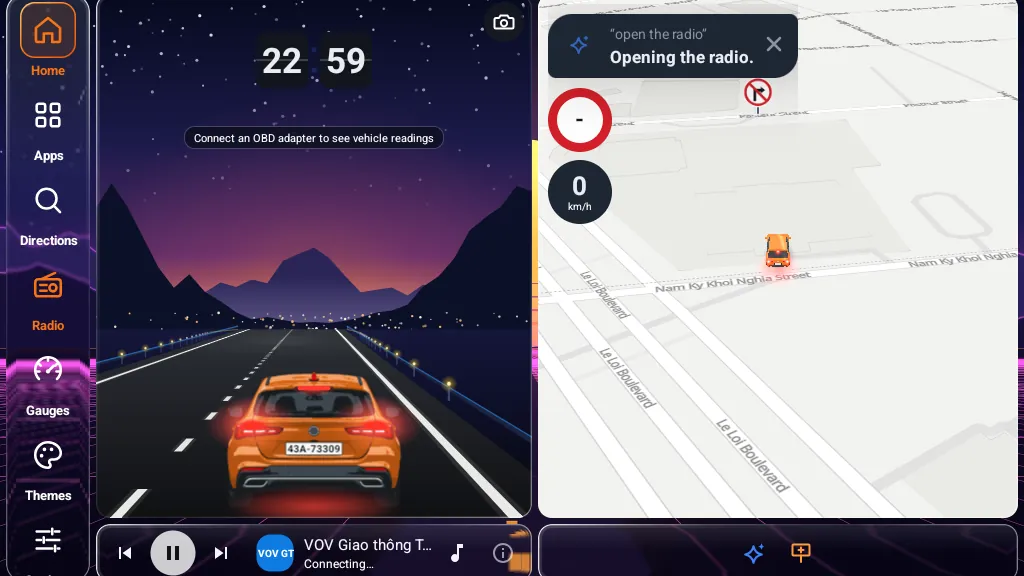
Mika card on the map: the heard sentence “open the radio” and the reply Opening the radio; the radio bar below starts playing

Tap the microphone button on the drive screen and say what you need. Mika listens only when you call it — the app no longer listens for “Hey Mika”, and the microphone is not open for the whole trip.

  • Android car head units and MapCar Launcher: press the voice key (Speak / mic) on the steering wheel. If the system asks which app to open the first time, choose MapCar (or MapCar Launcher) → Always. Some head units bind the wheel key to the maker's own voice app; if so, reassign the key to MapCar in the unit's steering-wheel key settings (where available).
  • Android phones: when the phone is connected to the car over Bluetooth hands-free (not Android Auto), the voice button on the wheel also calls Mika while the drive screen is open; so does holding the headset button. Choose MapCar → Always the first time.
  • iPhone and CarPlay: the voice button on the wheel always opens Siri. Say “Ask Mika in MapCar” — Mika opens its microphone on the CarPlay screen, or on the iPhone if the drive screen is open. Siri has no Vietnamese, so this works when Siri is set to English or Japanese; otherwise tap the Mika button on the car display.
  • Android Auto: the wheel button is always Google Assistant — Android Auto does not pass it to apps. Tap MapCar's microphone button on the car display, or ask Google Assistant to “navigate to …” with MapCar.

Mika replies by voice and shows a card in the top-left corner, as in the picture.

Here is what Mika can help with — just speak naturally, there is no need for exact wording:

  • Open a screen in the app: “open the radio”, “open the virtual road” (the column drawing the road and your car), “show the rev counter” (the instrument cluster), “open the camera”, “back to the map”, “open settings”, “turn on the HUD” (on a phone).
  • Find and navigate: “nearest fuel station”, “charging station ahead”, “coffee shop nearby”, “parking”, “pharmacy”, “navigate to Ben Thanh Market”, “take me home”, “go to work”, “stop navigation”, “how far to go”.
  • Control the map: “mute”, “unmute”, “zoom in”, “zoom out”, “2D map”, “3D map”, “recenter”.
  • Ask and report: “what's the limit here”, “how fast am I going”, “what time is it”, “traffic jam ahead” (reports to the community map: jam, accident, road closed, landslide, flooding).
  • Anything else: traffic law, fines, translation, arithmetic, a joke… Mika keeps answers short, so they are easy to follow while driving.

Basic commands (open a screen, find a place, go home, mute…) are handled right on the device: they use no credits and work even without signal — the card shows ‘Processed on device, 0 credits’. Only questions that need the AI use credits from your Mika plan, and if the month's credits run out, basic commands keep working. If the radio is playing, the app turns it down while Mika is listening to you.

04

Windshield HUD

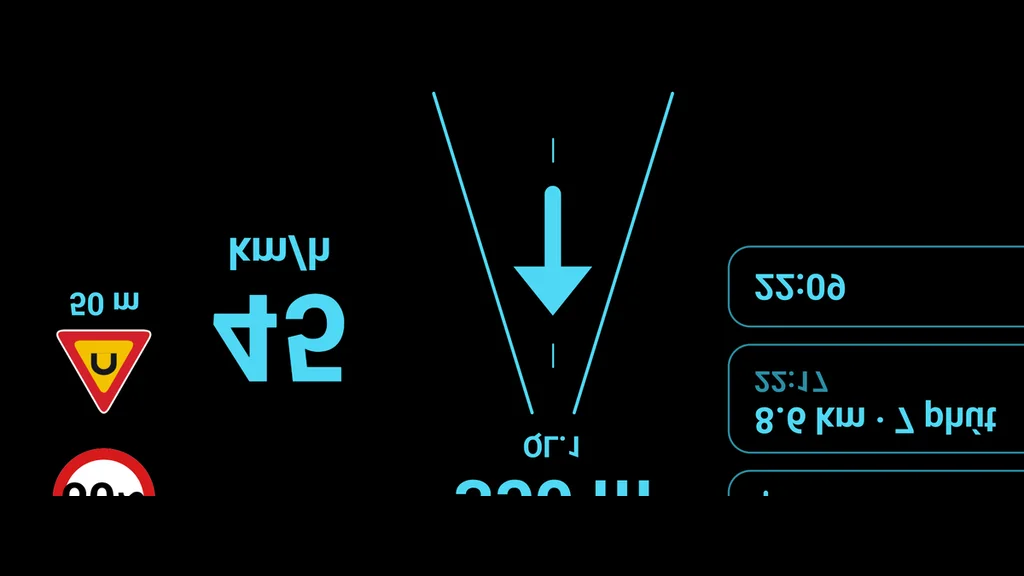
Windshield HUD screen on the phone: black background, mirrored text, big speed, limit sign and turn instruction

Available in the phone app (Android and iPhone), since a built-in car screen cannot be laid on the dashboard. Tap the Project onto windshield button in the button column on the right of the drive screen, or tap the microphone and say “turn on the HUD”. The screen turns black with large, bright, mirrored text: place the phone face-up on the dashboard with its top towards the glass, and the reflection in the windshield reads the right way round. It works best at night or on overcast days; in bright sunshine the glass does not reflect enough. The HUD shows speed, the limit, signs and traffic lights ahead, and the turn arrow with distance while navigating; the display changes colour if you go over the limit. Voice alerts and road matching keep running in the background.

Using a separate HUD combiner glass, or placing the phone with its top towards you? Choose the matching flip mode under Settings → Display → Windshield HUD. To leave the HUD, just tap the screen.

05

Fixing the speed limit on a stretch

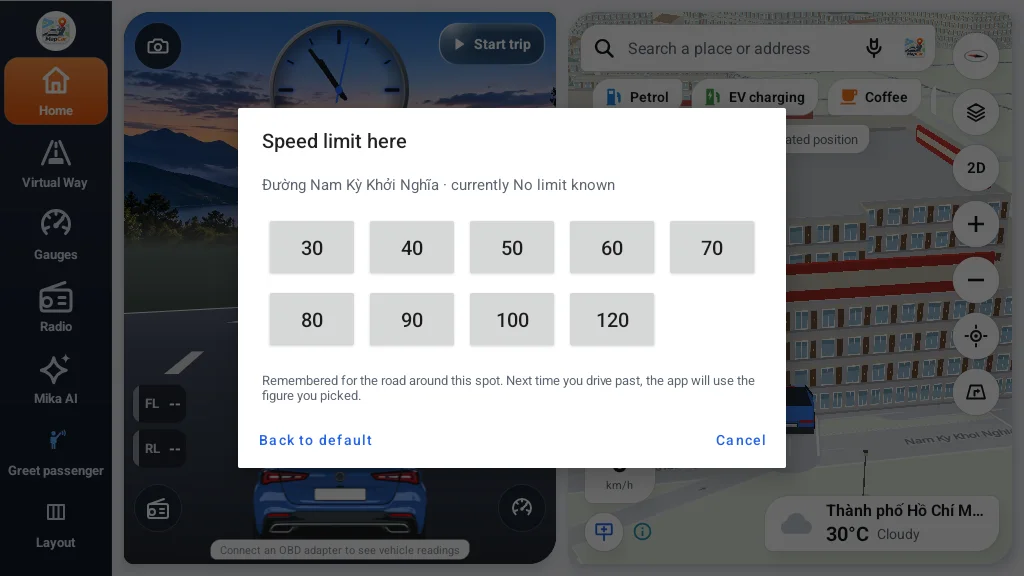
The Speed limit here dialog after tapping the limit sign: a 30–120 grid and a Back to default button

If the app shows the wrong limit, tap the limit sign on the driving screen and choose the correct number from the 30–120 grid. The app remembers it for that area and uses it again next time. To undo, tap ‘use default’. This needs a GPS fix and a recognised road. To help other drivers as well, report the sign to the community map instead — see the next section.

06

Reporting to the community map

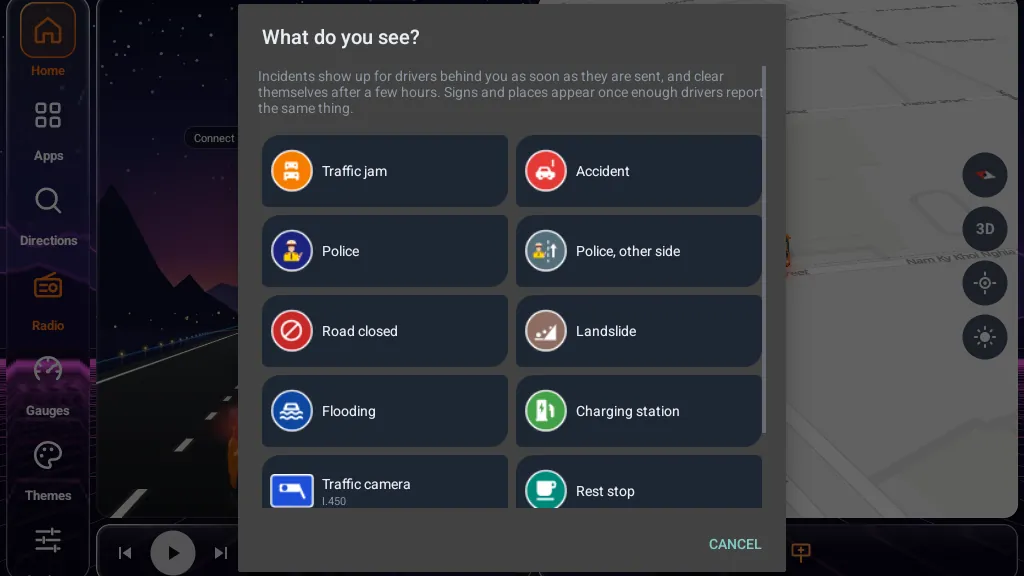
The What do you see? dialog with report types: Traffic jam, Accident, Police, Road closed, Landslide, Flooding, Charging station…

Spotted a speed sign, a camera, a jam or an accident? Tap the report button and choose the type, or simply tell Mika. The app sends only the type, the spot you tapped, your heading and a random device id — never your travel history, and nothing that identifies you. Signs become visible to others once three devices agree; incidents appear right away and expire after a while. Prefer not to take part? You can turn it off under Settings → Map → Community map; this stops both sending and receiving.

07

Alerts keep working when another app is on screen

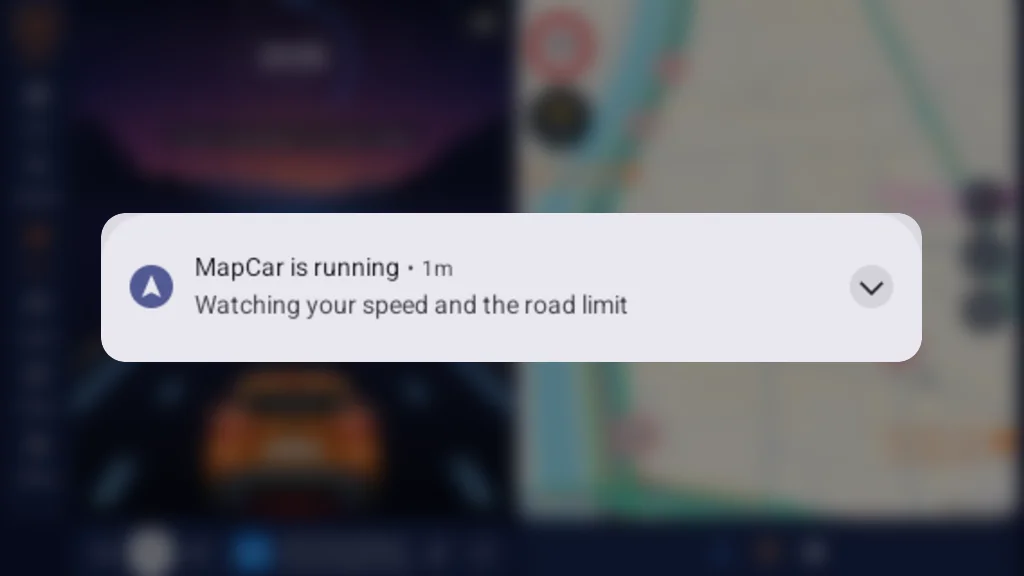
The MapCar is running — Watching your speed and the road limit notification

MapCar's driving features run in a foreground service rather than on the screen itself. When reverse gear brings up the rear camera, or a call comes in, your trip and speed alerts carry on — the ‘MapCar is running’ notification shows that the service is active. Road matching does need the map to be drawn, so while another app covers it, the limit sign keeps showing its last value.

Settings

What each tab in Settings means

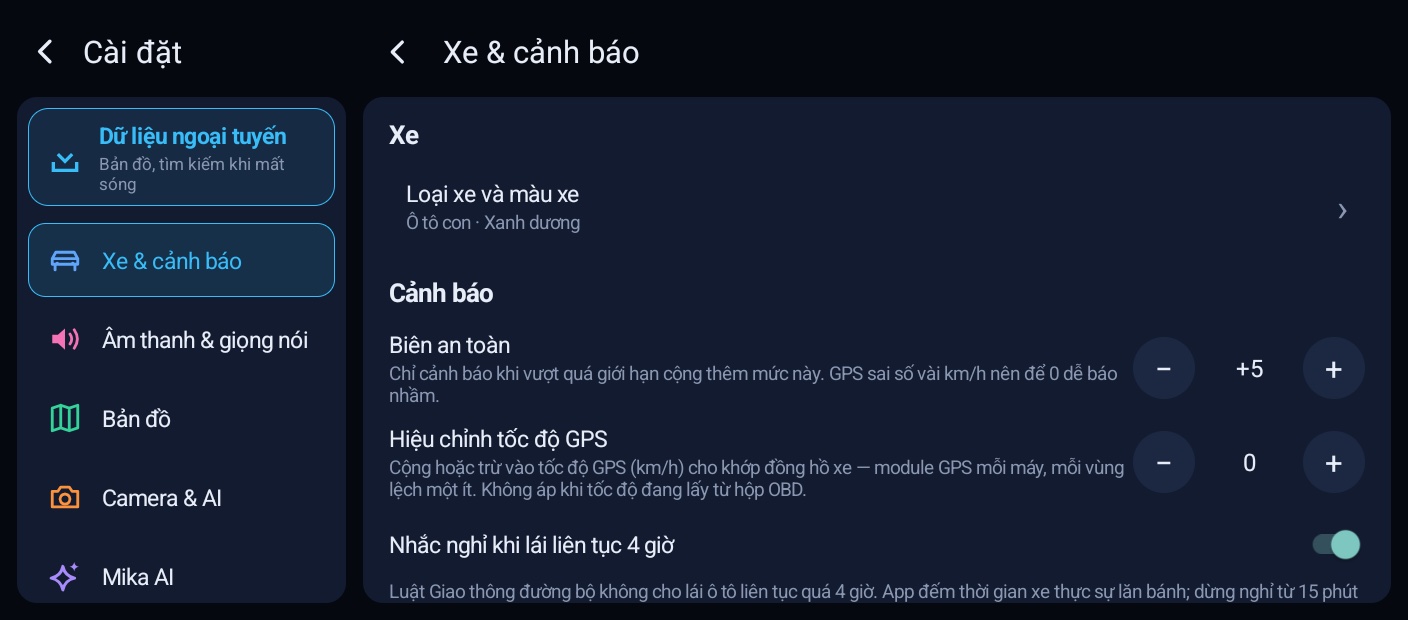
MapCar Launcher Settings: the list of tabs on the left, the Vehicle & alerts tab open on the right
  • Vehicle & alertsSpeed, alerts, limits, signals
  • Sound & voiceGuidance, volume
  • MapMap display, navigation, community
  • Camera & AIRecording, detection, warnings
  • DevicesCameras, OBD, Bluetooth
  • Display & themeTheme, day/night, layout
  • App & dataStorage, offline
  • GeneralLanguage, privacy, about
  • ProMapCar Pro, Mika AI, restore purchase